Every screen, in the order you will see it
25 steps, each with the screenshot that goes with it, from ordering a VPS to an EA reporting on your dashboard. Screenshots are from one real installation on a live account — nothing here is a mock-up.
Allow about half an hour the first time, most of which is waiting for the VPS to be built. In a hurry? The short version is on the main setup page.
Why this cannot run on your own computer
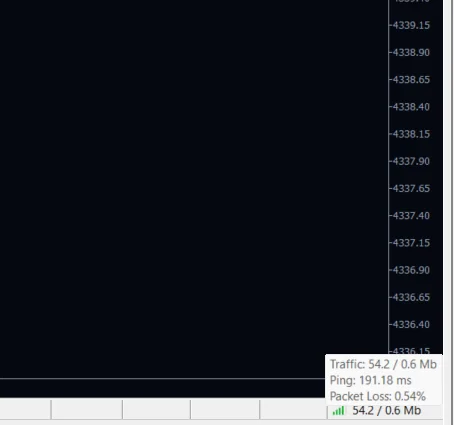
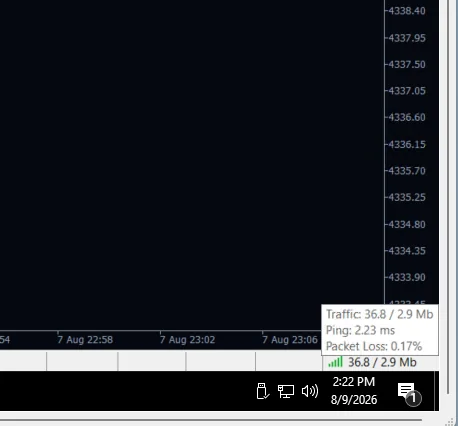
Both numbers below come from MetaTrader's own status bar, bottom right of the terminal. Same broker, same account, same day — one measured at home, one measured on a VPS in the broker's datacentre.
86 times further away. Every order the EA sends, every stop it moves and every close it requests makes that journey twice. On gold, which can travel a long way inside a single minute, the price you asked for and the price you get are separated by exactly that gap — and on a strategy that works a ladder of positions, it is paid on every one of them.
Aim for under 5 ms. A VPS in the same city as your broker gets there comfortably. You can read your own figure at any time in the bottom-right corner of MetaTrader.
One VPS, one terminal, one EA — this one
The plan recommended below is sized for a single MetaTrader terminal running this strategy and nothing else. No second EA, no other terminal, no manual trades on the same account, nothing left running in a browser. Every one of those competes for the same processor at the same moments the EA needs it, and the whole reason for putting it on a VPS was to stop that happening.
Part 1 — Order the VPS
Everything after this happens on the VPS, not on your own computer. Getting the location right is the single decision on this page that changes your results.
Open your FXVM dashboard
Order the VPS first — it takes ten to fifteen minutes to be built, and you can read the rest of this page while you wait. If you do not already know which city your broker's trade server sits in, use the chat bubble in the corner and ask FXVM directly; they answer this question all day and they will tell you which of their datacentres is closest to your broker.
FXVM — Windows VPS in forex datacentres →No account yet, or not sure yours qualifies? The requirements are on the setup guide — 2-digit gold, hedging, 1:1000 or better. Any broker meeting them works.
Partner links — they pay us a commission, nothing extra for you.
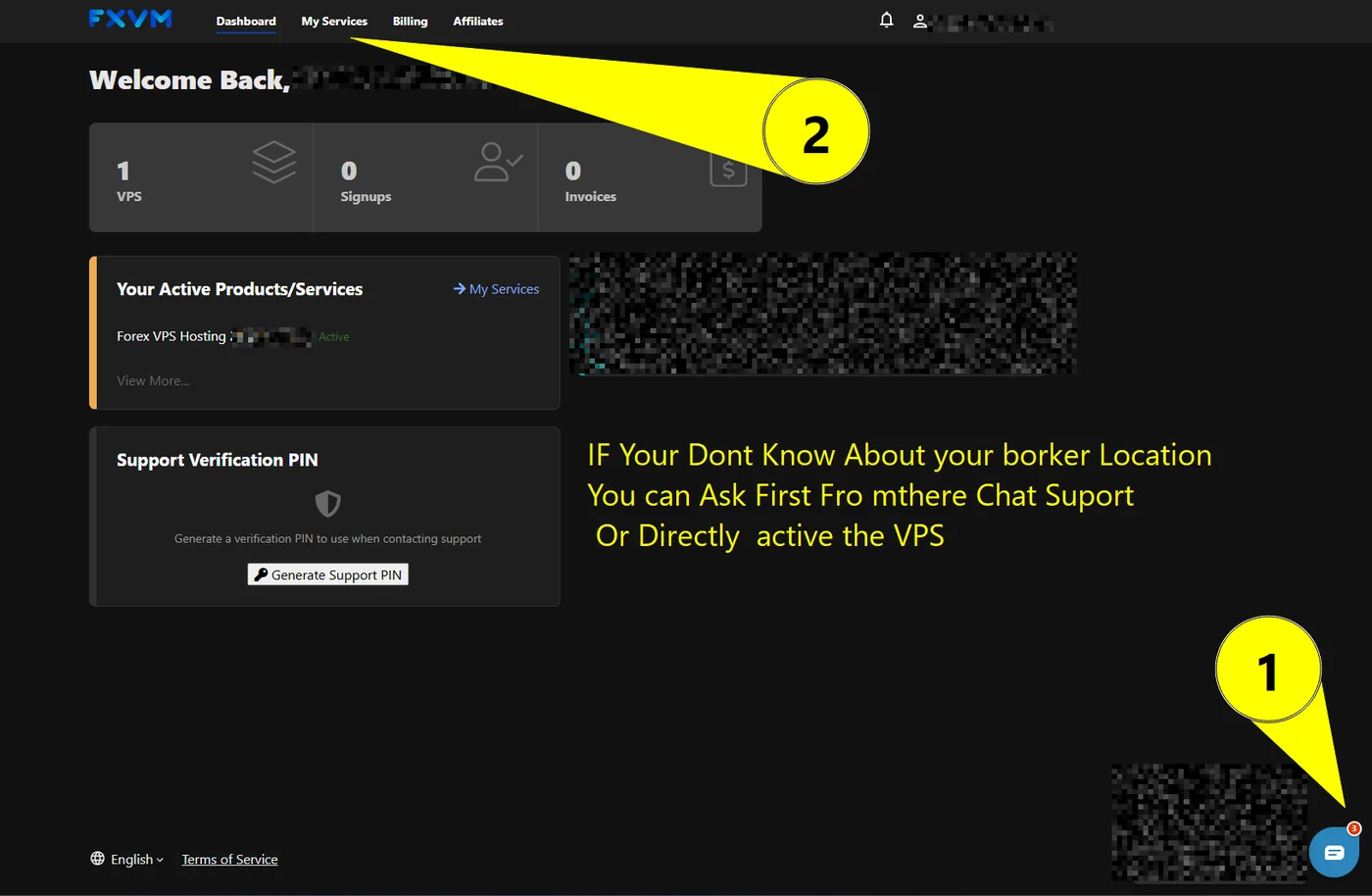
My Services → Order New VPS
If this is your first VPS the page will be empty apart from the order button. Nothing here is specific to us — you are buying an ordinary Windows machine that happens to sit in a forex datacentre.
FXVM — Windows VPS in forex datacentres →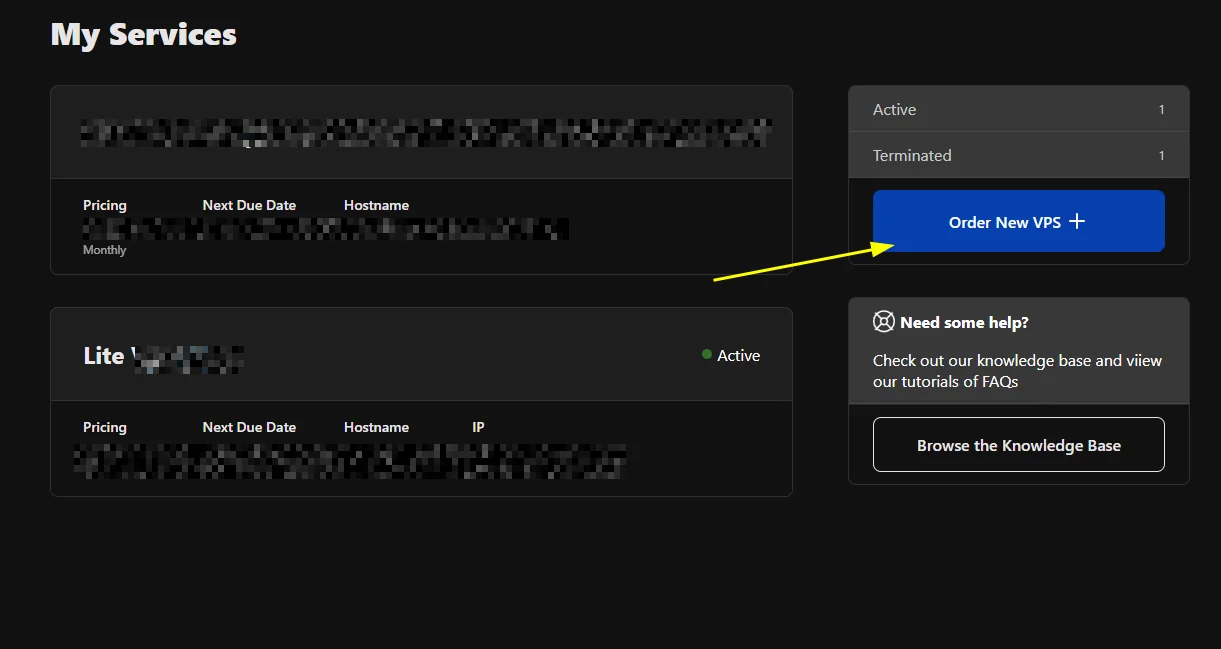
Lite VPS is enough — for one EA
Two cores, 1.5 GB of RAM, 40 GB of disk. One MetaTrader terminal watching one gold chart is not a heavy workload, and paying for a bigger machine buys you nothing the strategy can use. What it cannot absorb is company: this plan is sized for one terminal running one EA, and that is exactly how it should be used.
Take the yearly term if you can. It is cheaper per month, but the real reason is that a monthly plan is twelve chances a year to miss a renewal — and an expired VPS switches off with your positions still open.
FXVM — Windows VPS in forex datacentres →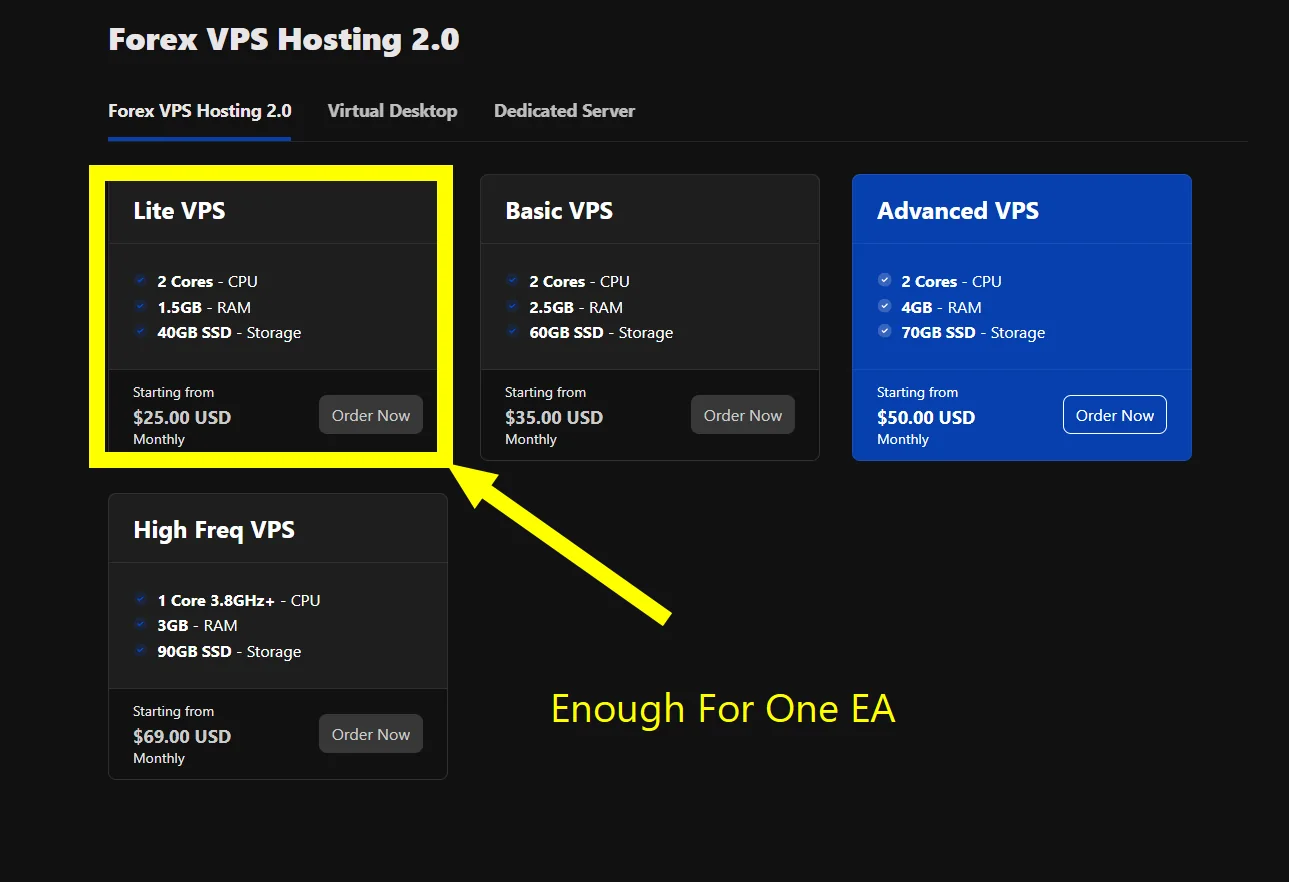
First, find out where your broker's server actually is
Three ways, best first. (1) Ask FXVM's chat and give them your broker's name — they keep measured latency tables to more than 150 brokers and answer this all day, so they will simply tell you which of their datacentres is closest. (2) Ask your own broker: "which datacentre is your MT5 trade server hosted in?" Their support knows, even if the answer takes a day. (3) Look at the server name in MetaTrader — something like VantageMarkets-Live 11 — and give that exact string to whichever of the two you ask; it identifies the server precisely.
Do not guess from where the broker's office is. A broker registered in one country routinely runs its trade servers in another — London, New York and Tokyo host most of them regardless of whose name is on the door.
FXVM — Windows VPS in forex datacentres →No account yet, or not sure yours qualifies? The requirements are on the setup guide — 2-digit gold, hedging, 1:1000 or better. Any broker meeting them works.
Partner links — they pay us a commission, nothing extra for you.
Choose the datacentre in your broker's city
This is the most important step on the page. Every entry, every trailing stop and every close is a round trip to your broker's server, and the distance between the two machines decides how long that takes. A modest VPS in the same city as your broker beats a far larger one on the other side of the world, every single time. If you are not certain where your broker is, stop here and ask FXVM's chat — do not guess.
FXVM — Windows VPS in forex datacentres →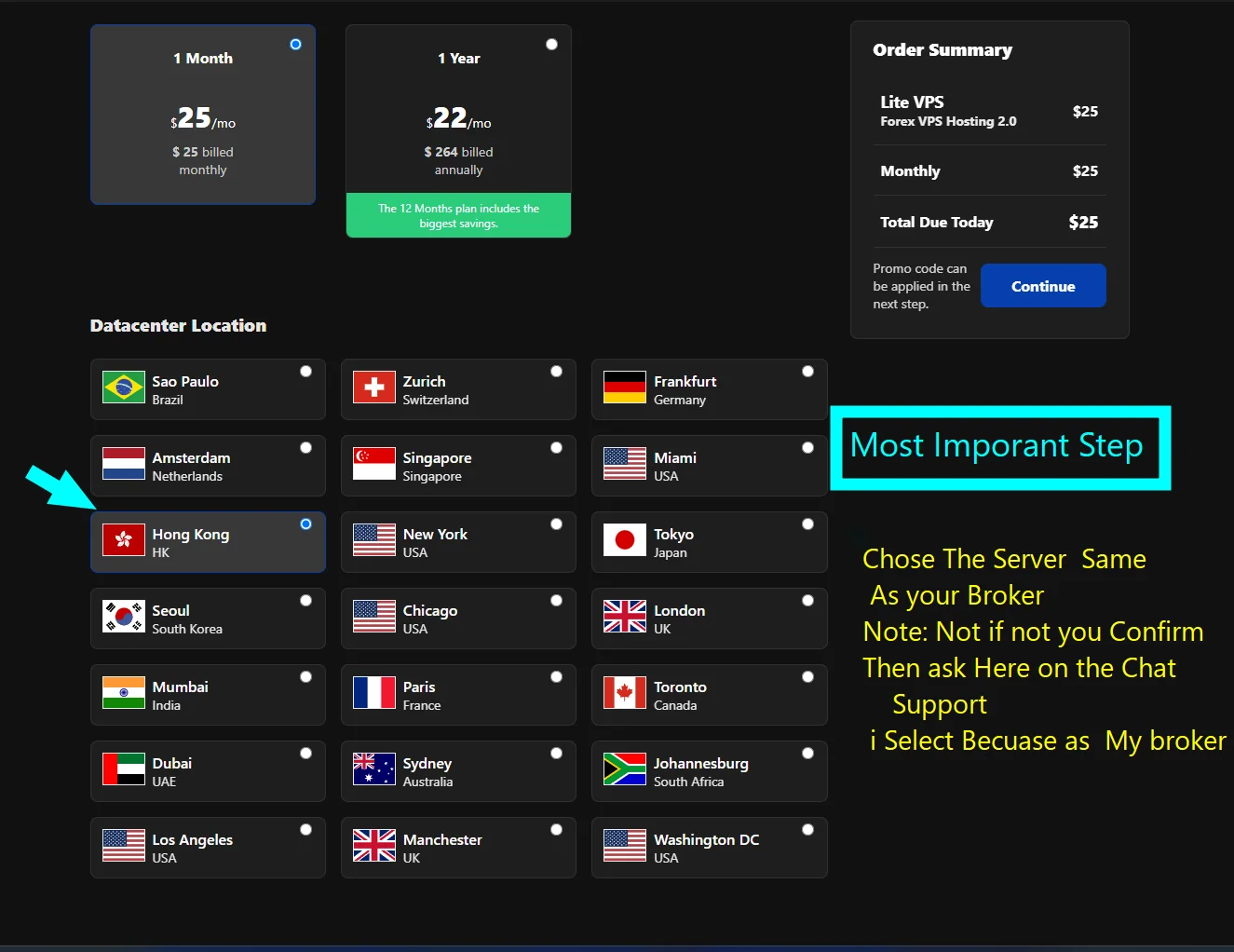
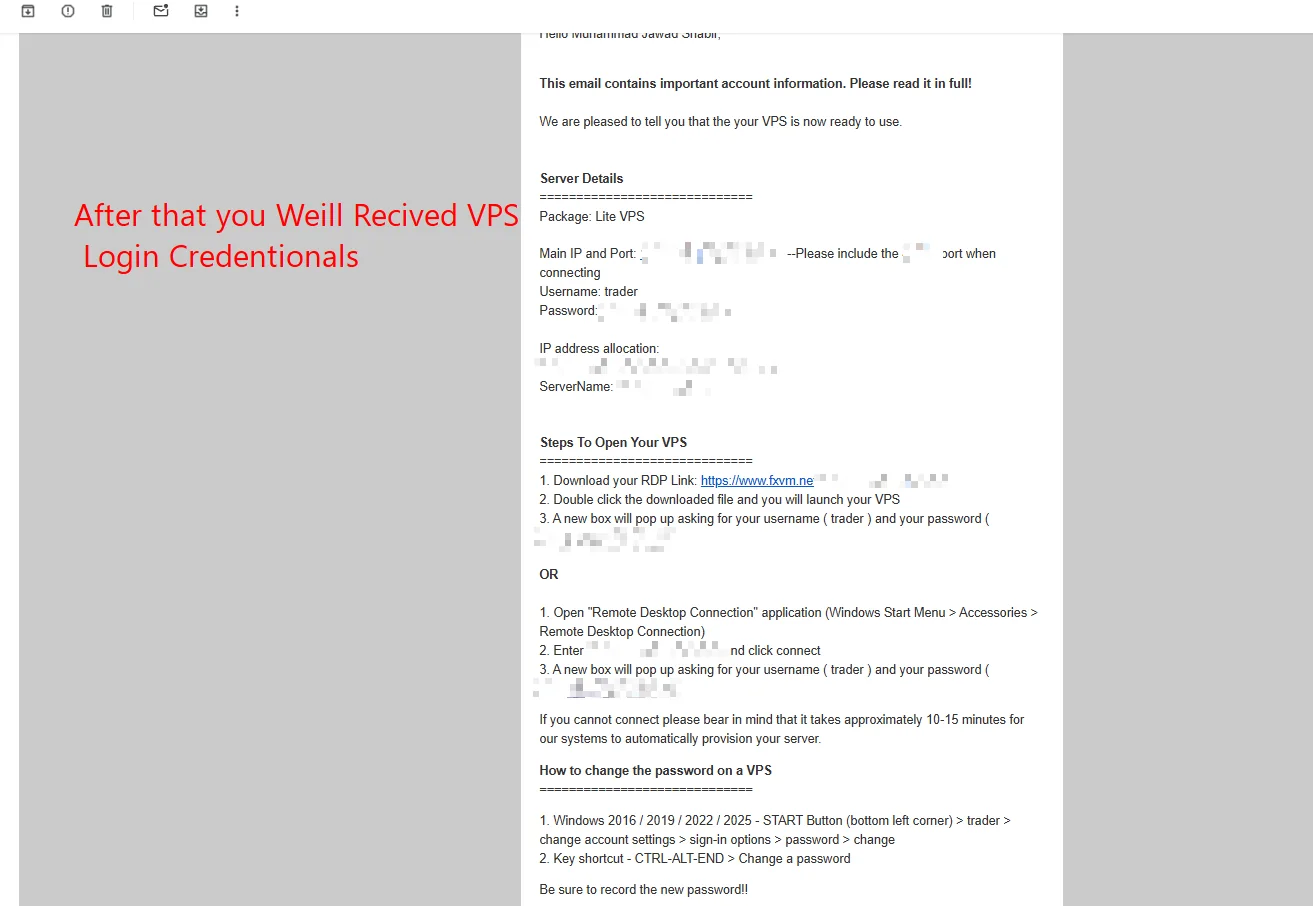
Wait for the credentials email
FXVM emails you the IP address and port, a username — it is normally 'trader' — and a password. Provisioning takes roughly ten to fifteen minutes, so if the machine refuses your first connection attempt it is almost certainly not ready yet rather than broken. Change the password once you are in; the email explains how, and the account you were given is one somebody guessed the format of before you did.
You will be able to check whether you chose the right city once MetaTrader is running: the ping is in the bottom-right corner of the terminal. Under 5 ms means you chose well. If it is 50 ms or more, tell FXVM — they can move a VPS to another datacentre, and it is far easier to do that in the first week than to live with it.
Part 2 — Connect to it
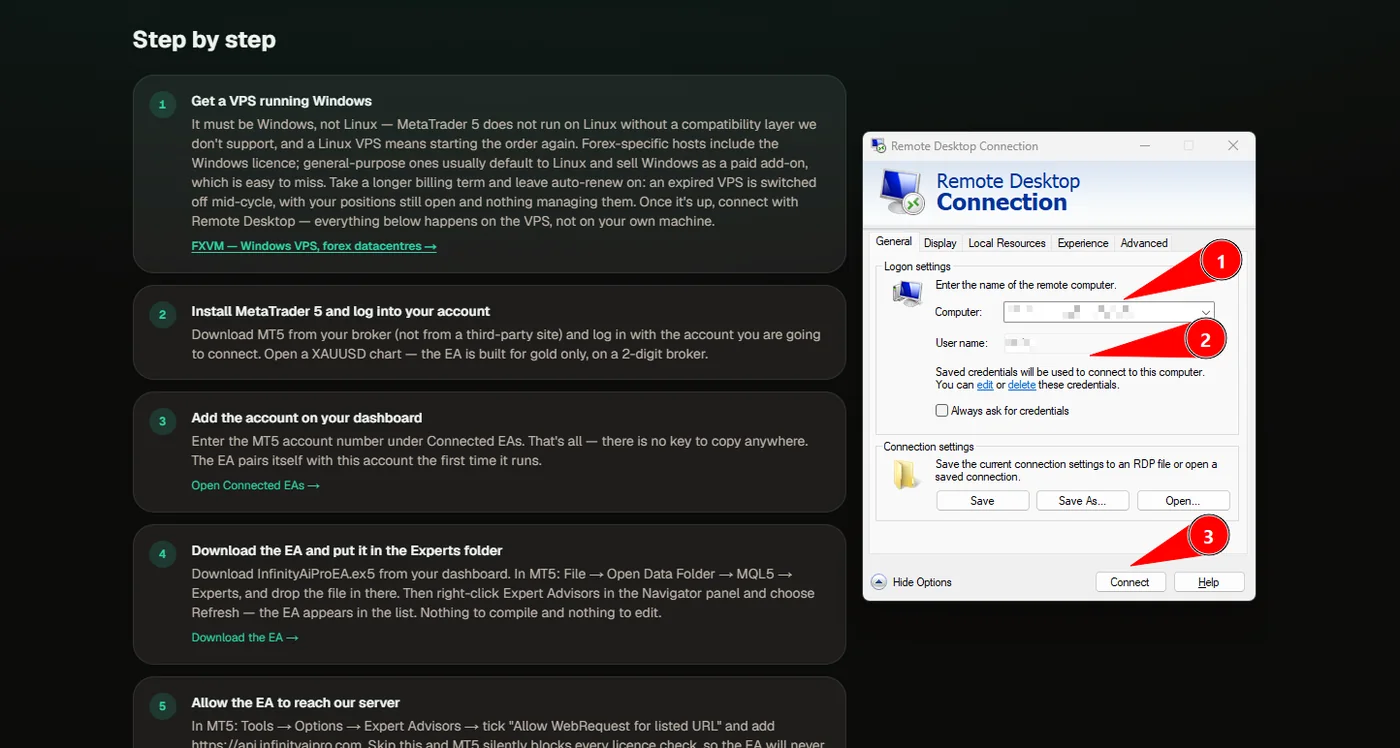
Remote Desktop is built into Windows. You are opening a screen onto a computer in a datacentre; from here on, everything you click happens there.
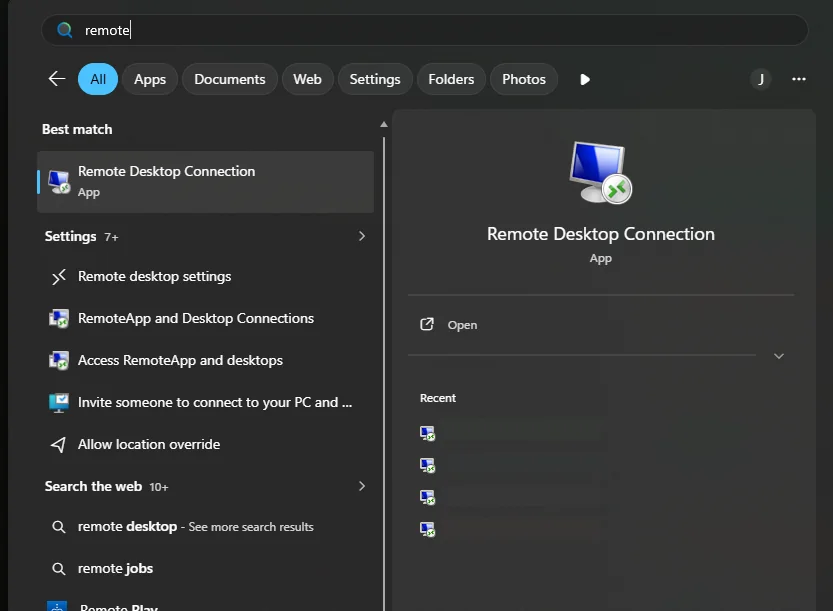
Open Remote Desktop Connection
Press the Windows key and type 'remote'. Remote Desktop Connection is the first result. On a Mac, install Microsoft Remote Desktop from the App Store instead — the fields are the same.
Enter the address, the username, and connect
Put the IP and port from the email into Computer, exactly as it was written including the colon and the digits after it. Put the username underneath. Click Connect, accept the certificate warning, and enter the password. A Windows desktop opens — that is your VPS.
When you are finished, close the Remote Desktop window. Do not use Sign Out — signing out ends the Windows session, and MetaTrader closes with it. Closing the window leaves everything running.
Part 3 — Install MetaTrader 5 on the VPS
The VPS arrives as a bare Windows machine. Everything below happens inside the Remote Desktop window.
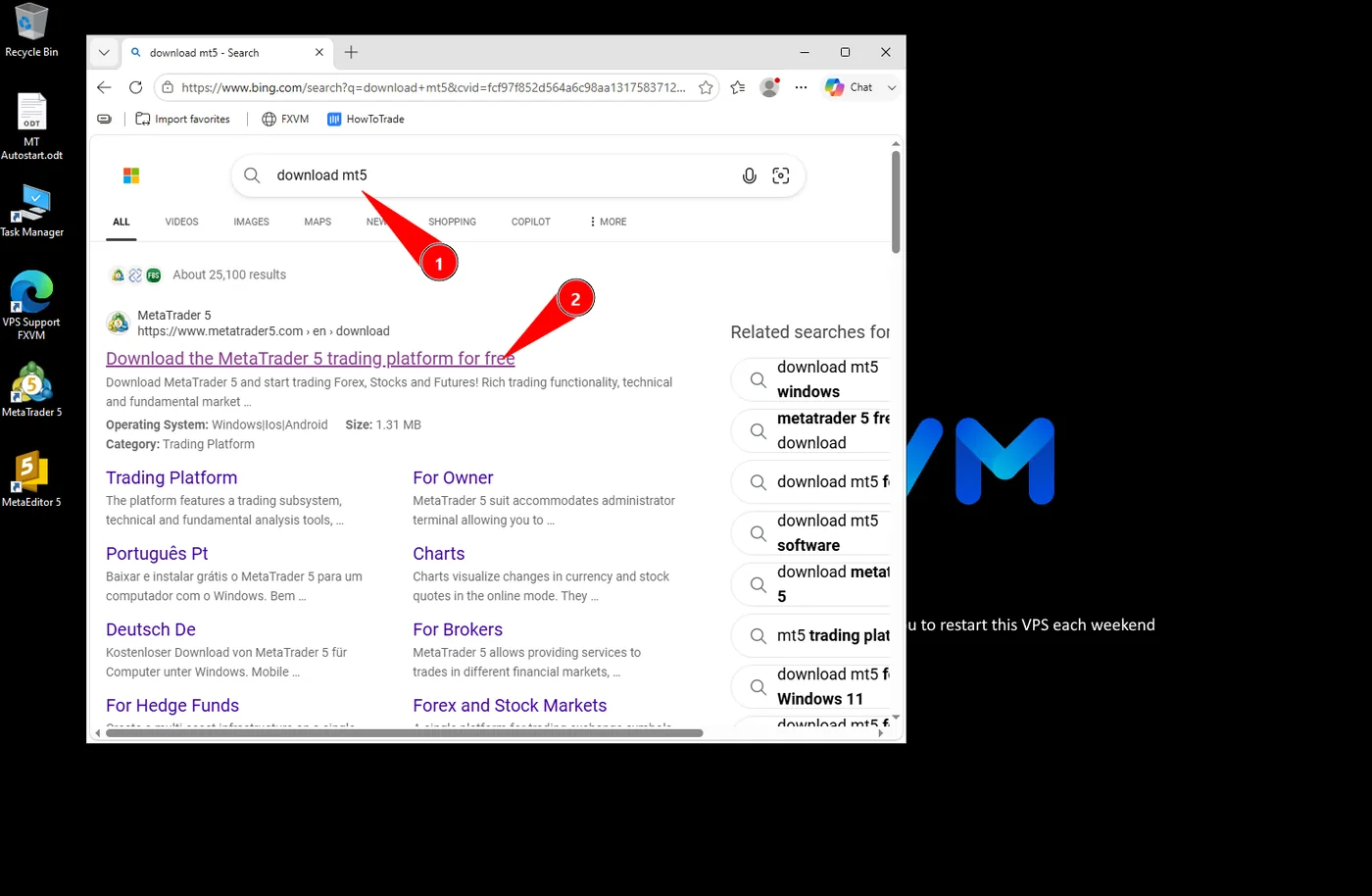
Go to metatrader5.com
Open the browser on the VPS and go to metatrader5.com — the official MetaQuotes site. Do not install MetaTrader from a download portal or a link somebody sent you; a trading terminal is the last piece of software on earth worth taking a chance on.
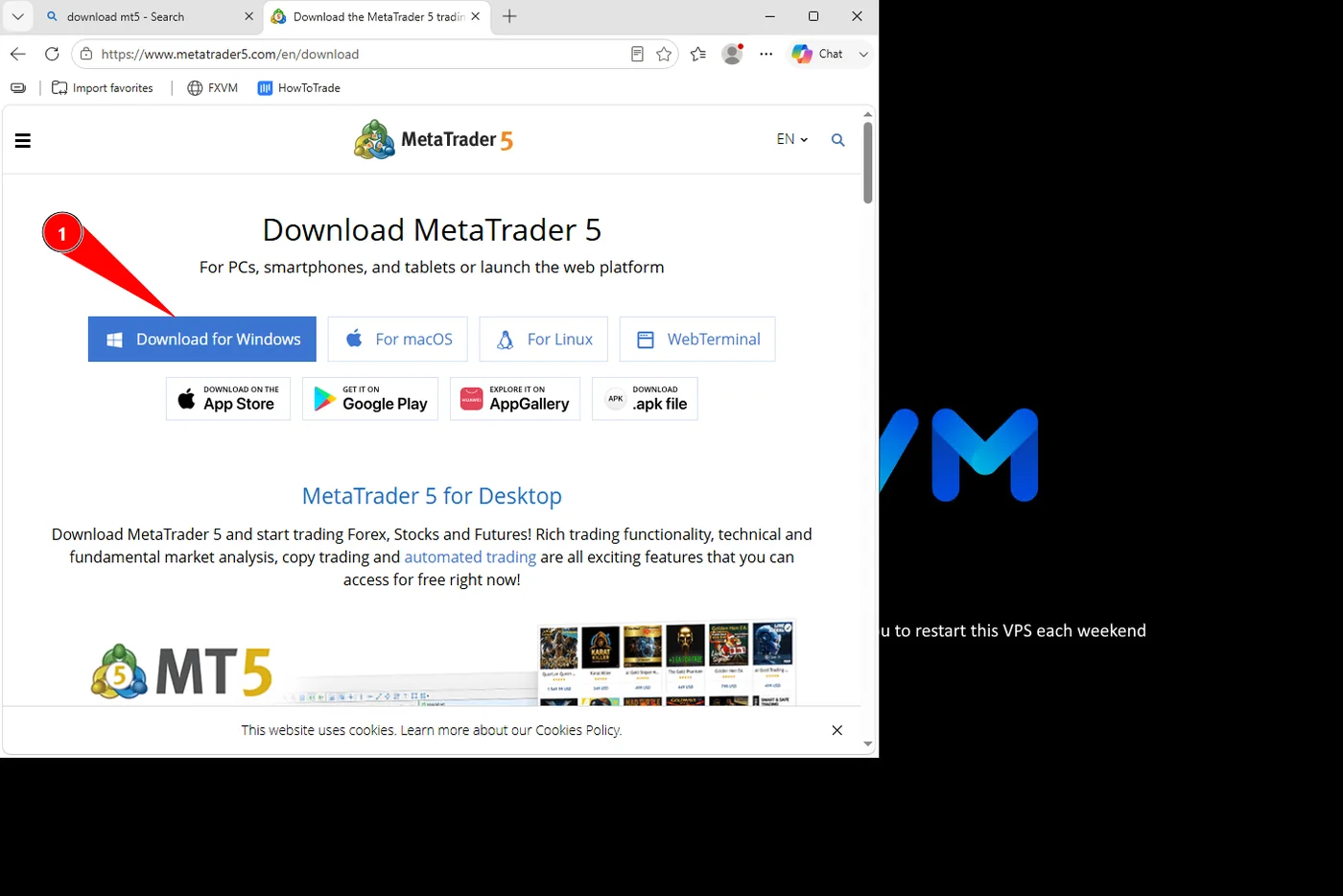
Download for Windows
One button, about 1.3 MB. It is a small downloader that fetches the rest as it installs.
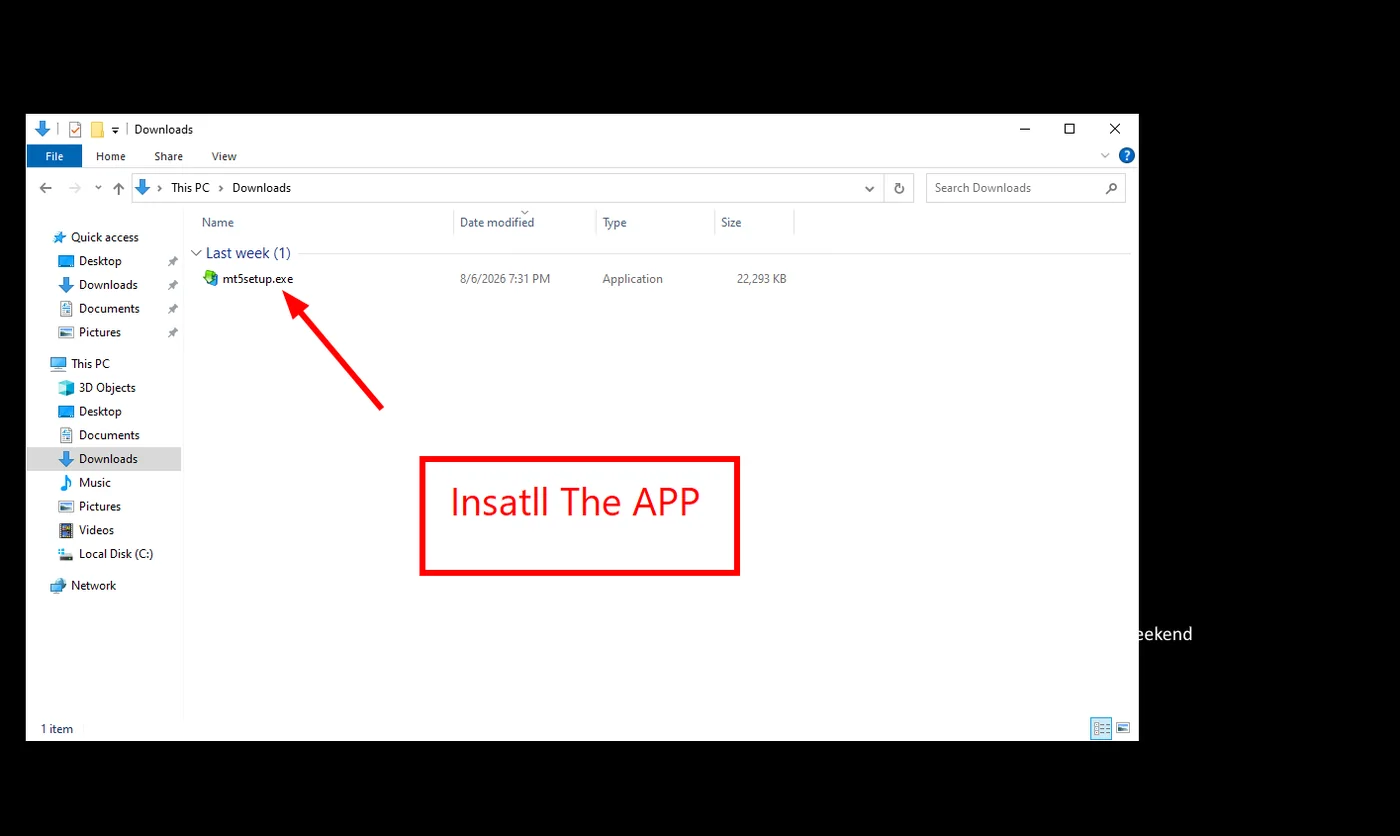
Run the installer, then log in
Run mt5setup.exe and accept the defaults. When MetaTrader opens, log in with the account you are going to connect — your broker's server name is in the email they sent when you opened the account. Then open a XAUUSD chart on the M1 timeframe. Check the price has two decimals, like 4150.65: the EA is built for 2-digit gold and will refuse a 3-digit feed rather than trade it badly.
If the price shows three decimals, stop here — that feed is refused rather than traded badly, and no setting fixes it. You need an account on a broker quoting gold to two.
No account yet, or not sure yours qualifies? The requirements are on the setup guide — 2-digit gold, hedging, 1:1000 or better. Any broker meeting them works.
Partner links — they pay us a commission, nothing extra for you.
Part 4 — Put the EA where MetaTrader can see it
MetaTrader only lists programs kept in one specific folder, and the folder is not where you would guess. There is nothing to compile and nothing to edit.
Download the EA from your dashboard
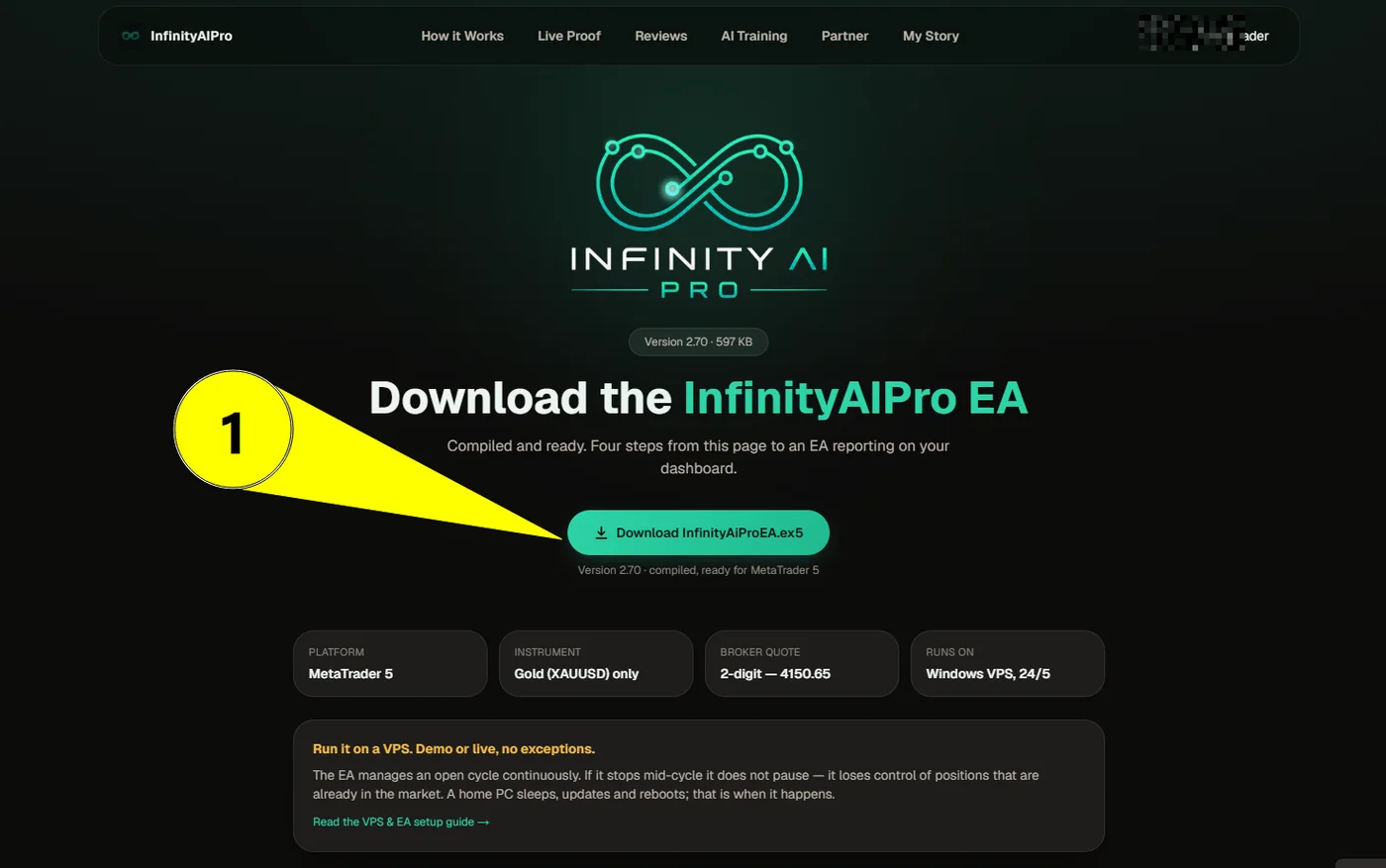
On the VPS, log into your InfinityAIPro dashboard and download InfinityAiProEA.ex5. It is already compiled — you never see or need the source.
No account yet, or not sure yours qualifies? The requirements are on the setup guide — 2-digit gold, hedging, 1:1000 or better. Any broker meeting them works.
Partner links — they pay us a commission, nothing extra for you.
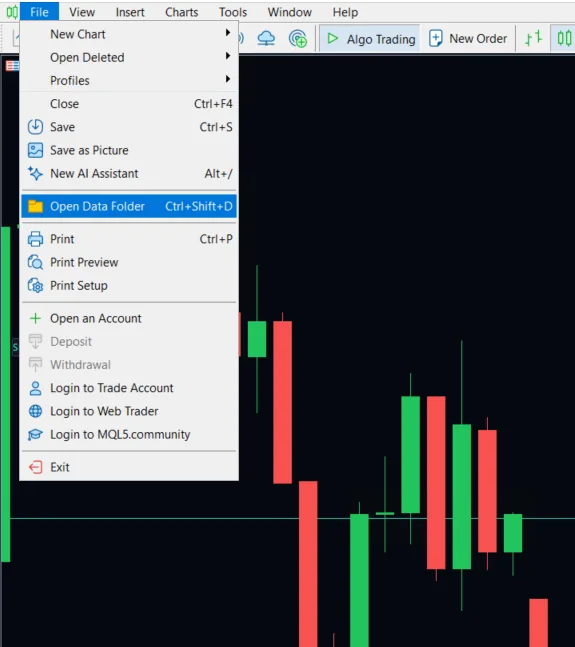
MetaTrader → File → Open Data Folder
This opens the folder MetaTrader actually reads from, which lives deep inside AppData under a long random name. Never try to find it by hand — always use this menu item.
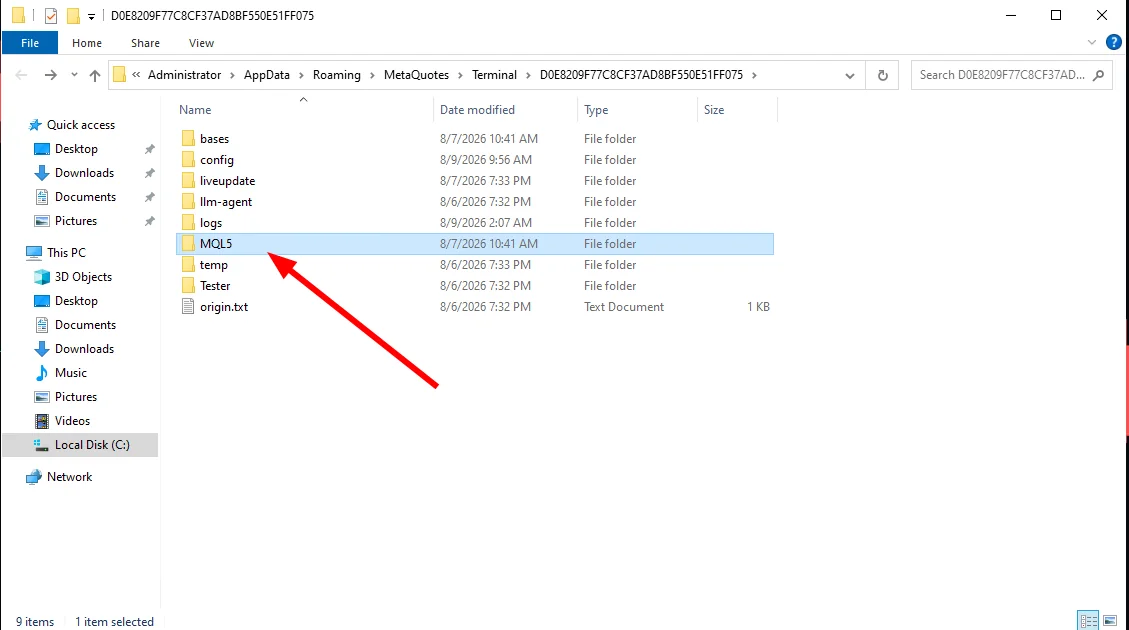
Open MQL5
Inside the data folder, the MQL5 folder is the one that matters. Everything else is the terminal's own housekeeping.
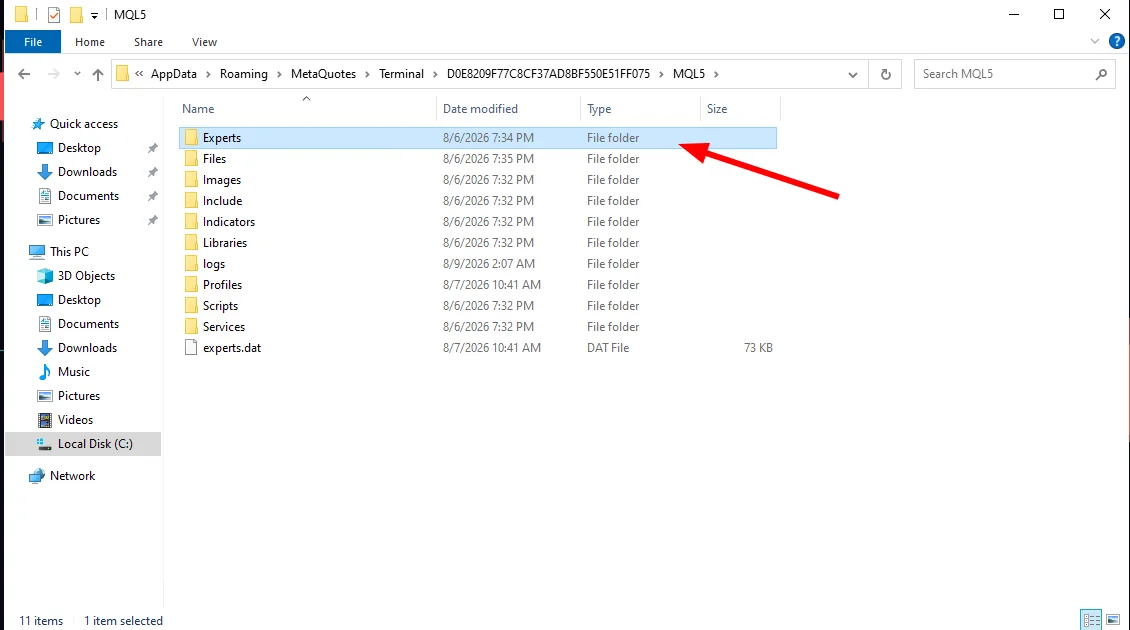
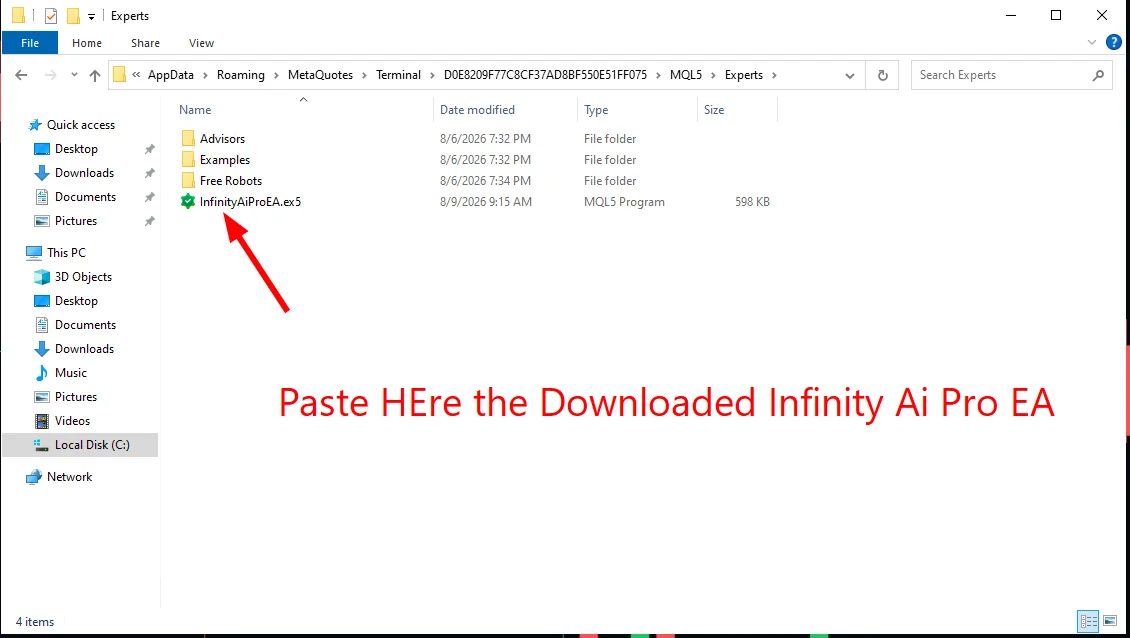
Open Experts
MQL5 → Experts. This is where Expert Advisors live. Indicators and Scripts are separate folders and the EA will not be found in either.
Paste InfinityAiProEA.ex5 in there
Copy the file you downloaded into this folder. That is the whole installation — no installer, no registry, nothing to configure.
Part 5 — Attach it and grant the one permission
The EA needs to reach our server to check its licence. MetaTrader blocks that by default, silently, and it is the single most common reason a correct installation never starts.
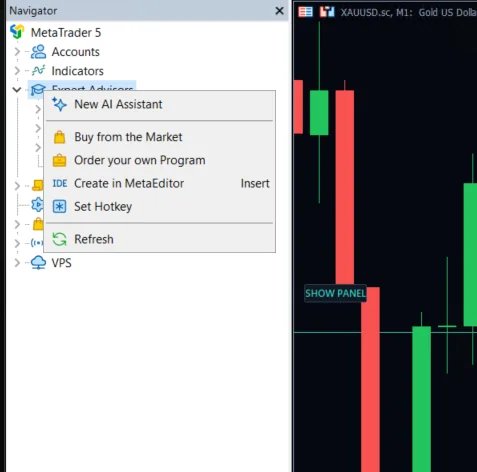
View → Navigator, then refresh
Open the Navigator panel, right-click Expert Advisors and choose Refresh. InfinityAiProEA appears in the list. If it does not, the file is in the wrong folder — go back to step 14.
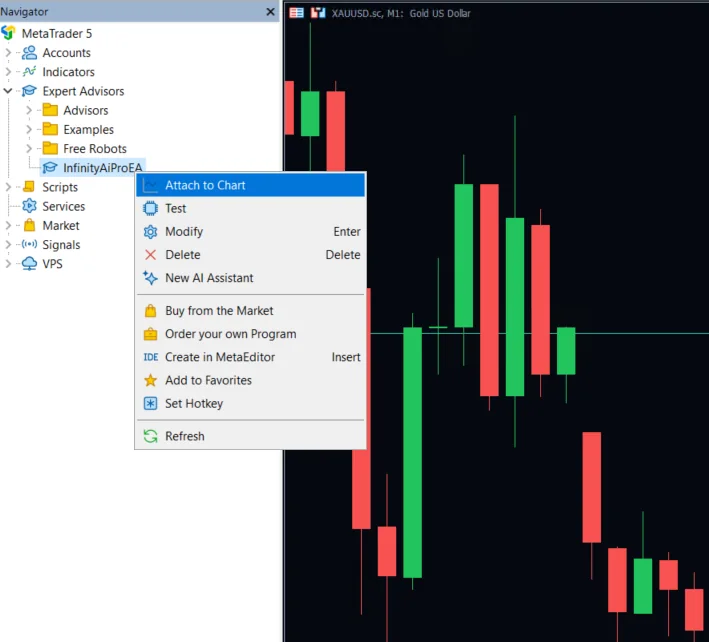
Right-click the EA → Attach to Chart
With your XAUUSD M1 chart open, right-click InfinityAiProEA in the Navigator and choose Attach to Chart.
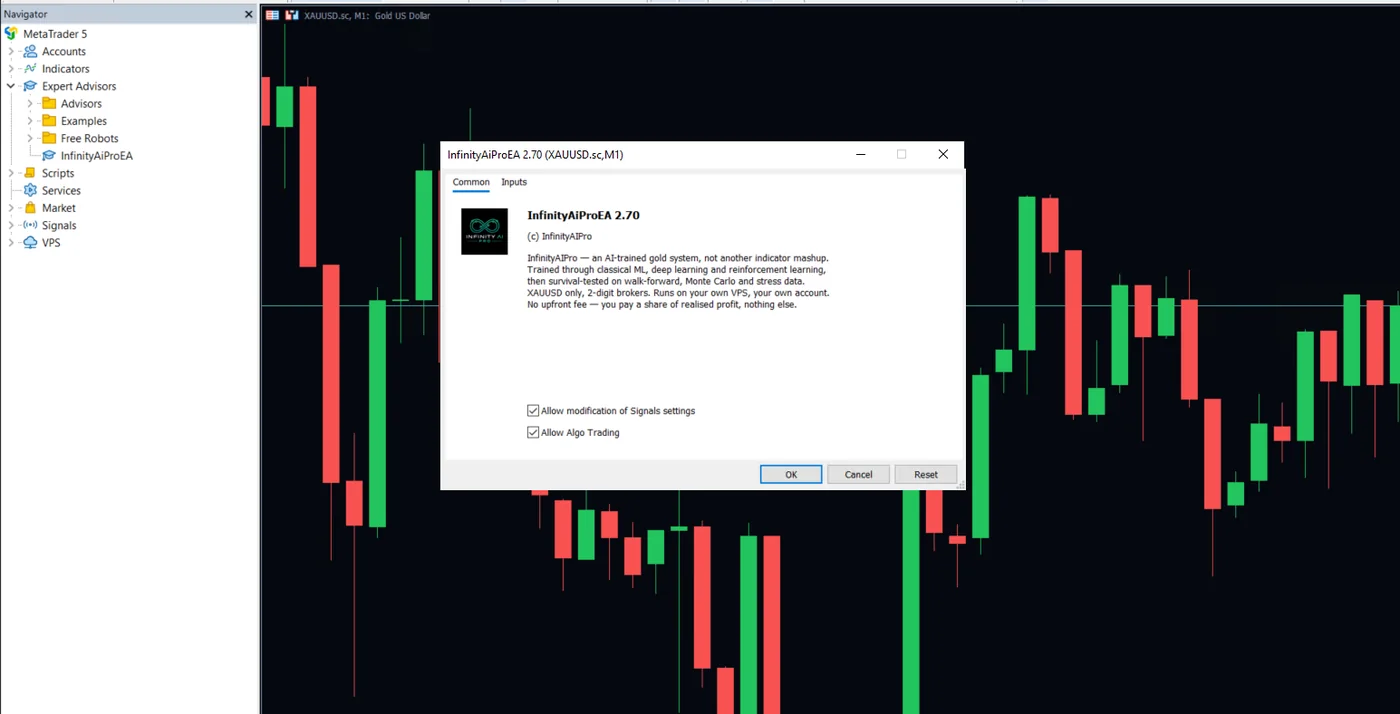
On the Common tab, tick Allow Algo Trading
The dialog that opens has two tabs. On Common, tick Allow Algo Trading. Do not press OK yet — the next step needs something from the other tab.
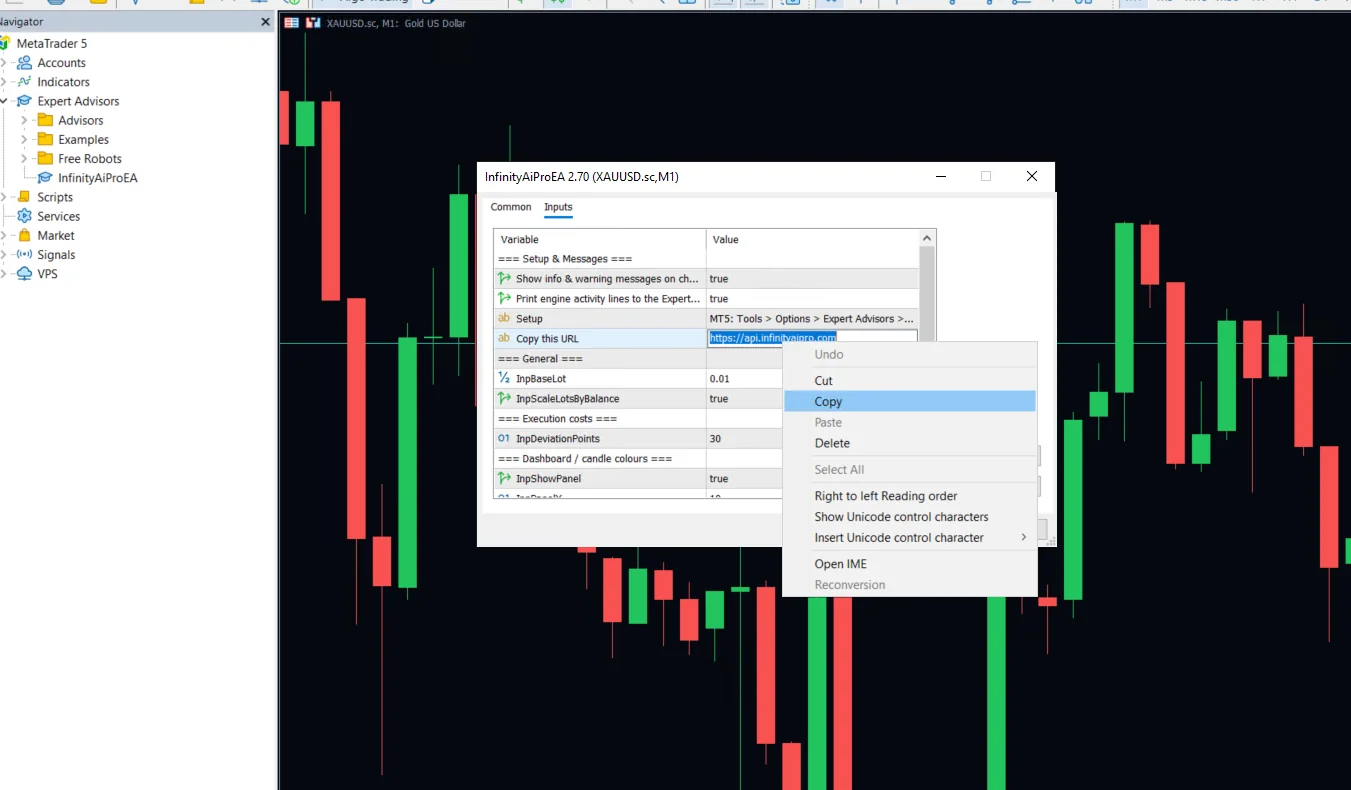
On the Inputs tab, copy the URL out of the EA
Switch to Inputs. Near the top there is a row called 'Copy this URL' holding https://api.infinityaipro.com. Select it, right-click, Copy. Taking it from here rather than typing it removes the one way this step goes wrong — a mistyped address fails exactly like no address at all. Now press OK.
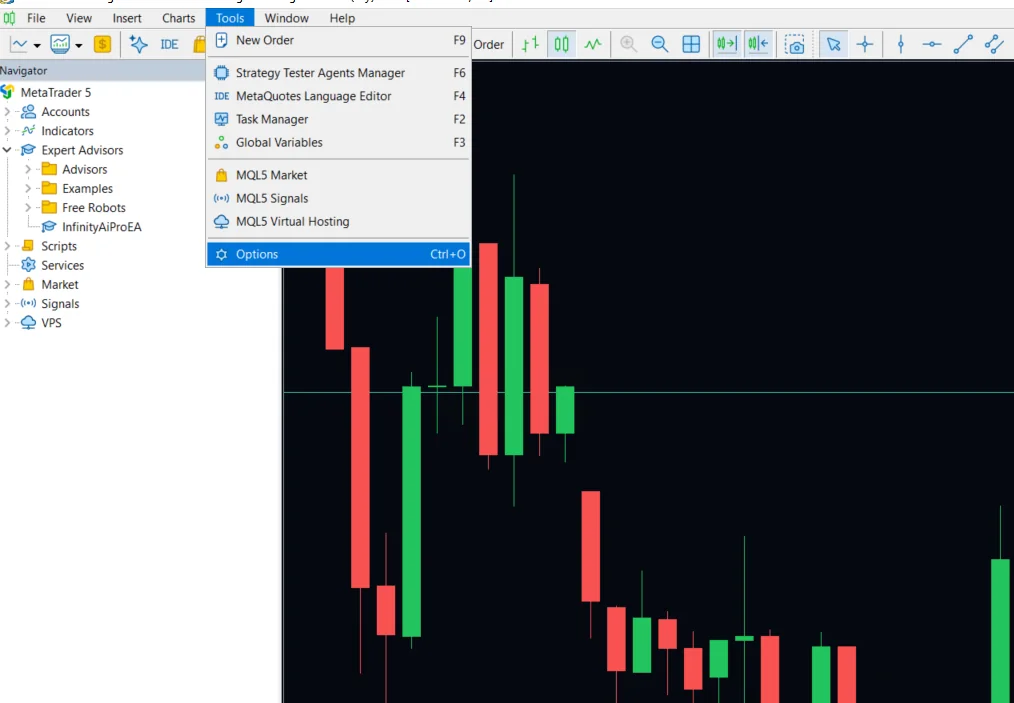
Tools → Options → Experts
Open the terminal's own options. This permission belongs to MetaTrader, not to the EA, which is why it survives reinstalling the EA and has to be set once per terminal.
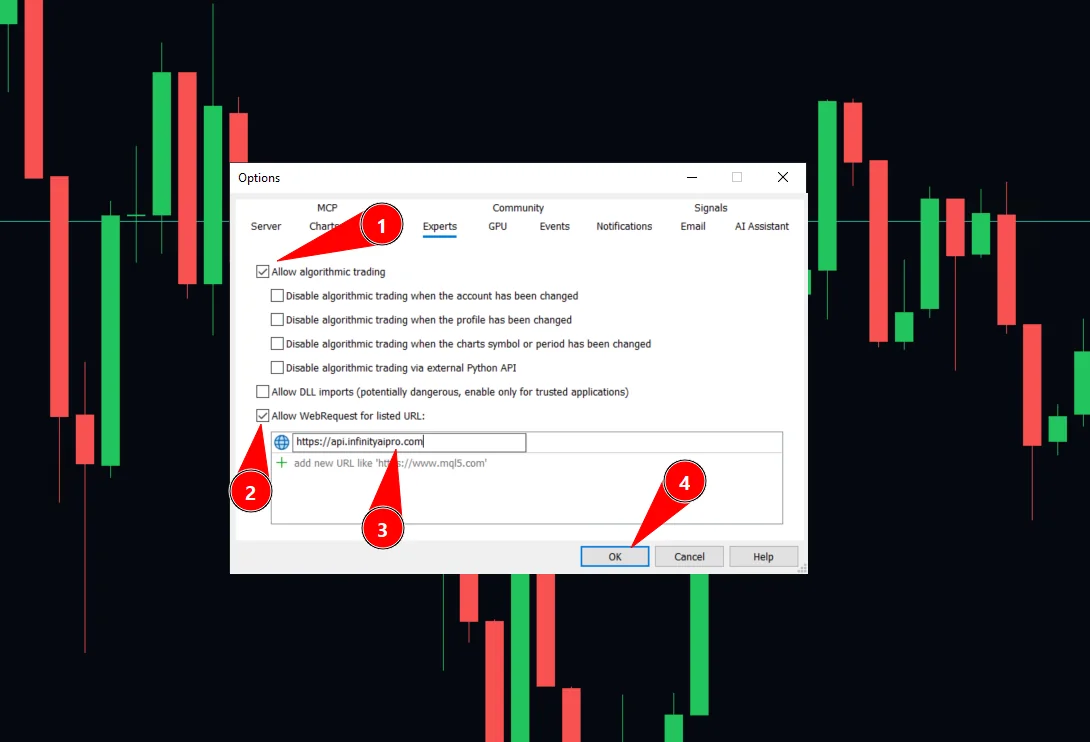
Allow algorithmic trading, allow the URL, OK
Tick Allow algorithmic trading. Tick Allow WebRequest for listed URL. Paste https://api.infinityaipro.com into the list. Press OK. Leave Allow DLL imports unticked — the EA does not use DLLs and nothing that asks for them should be trusted lightly.
Also check the Algo Trading button in the toolbar is switched on and green. It is a separate switch from the one in this dialog, and with it off the EA loads, draws its panel and never trades.
Part 6 — Connect the account on your dashboard
The EA pairs itself the first time it runs, but it can only pair with an account you have told us about.
Dashboard → Connected EAs
From the Overview, open Connected EAs. This is also where the account will appear once the EA reports for the first time.
Open Connected EAs →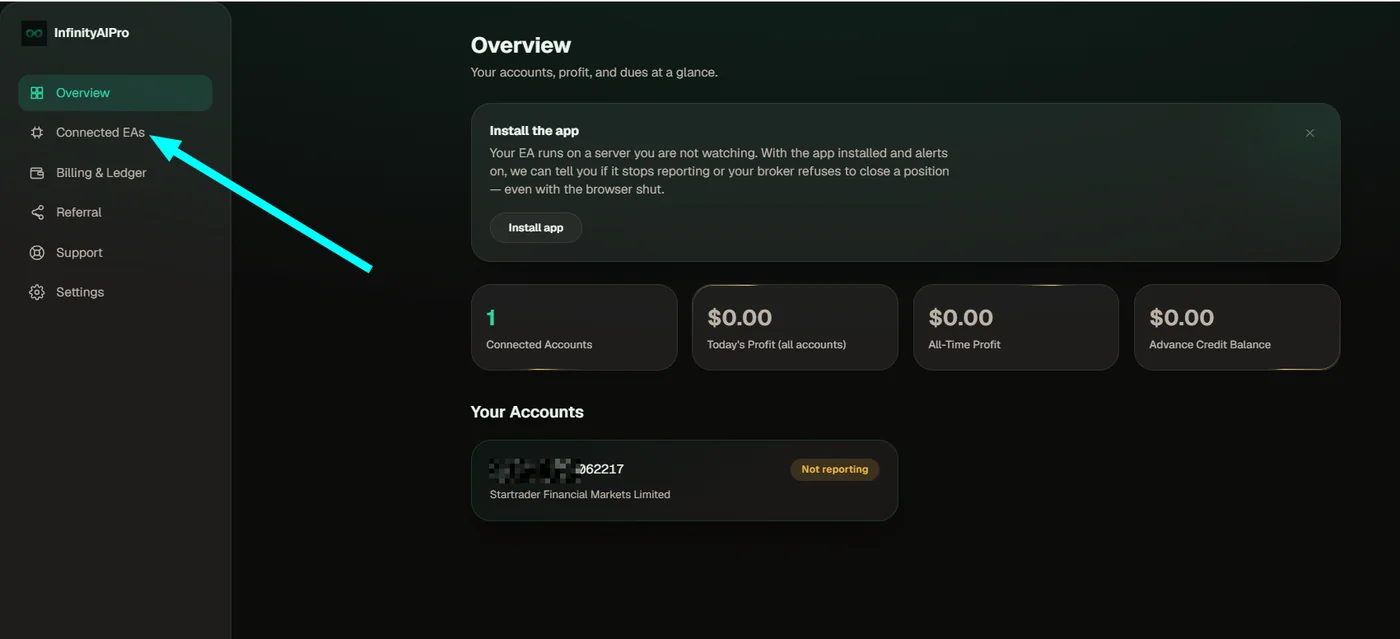
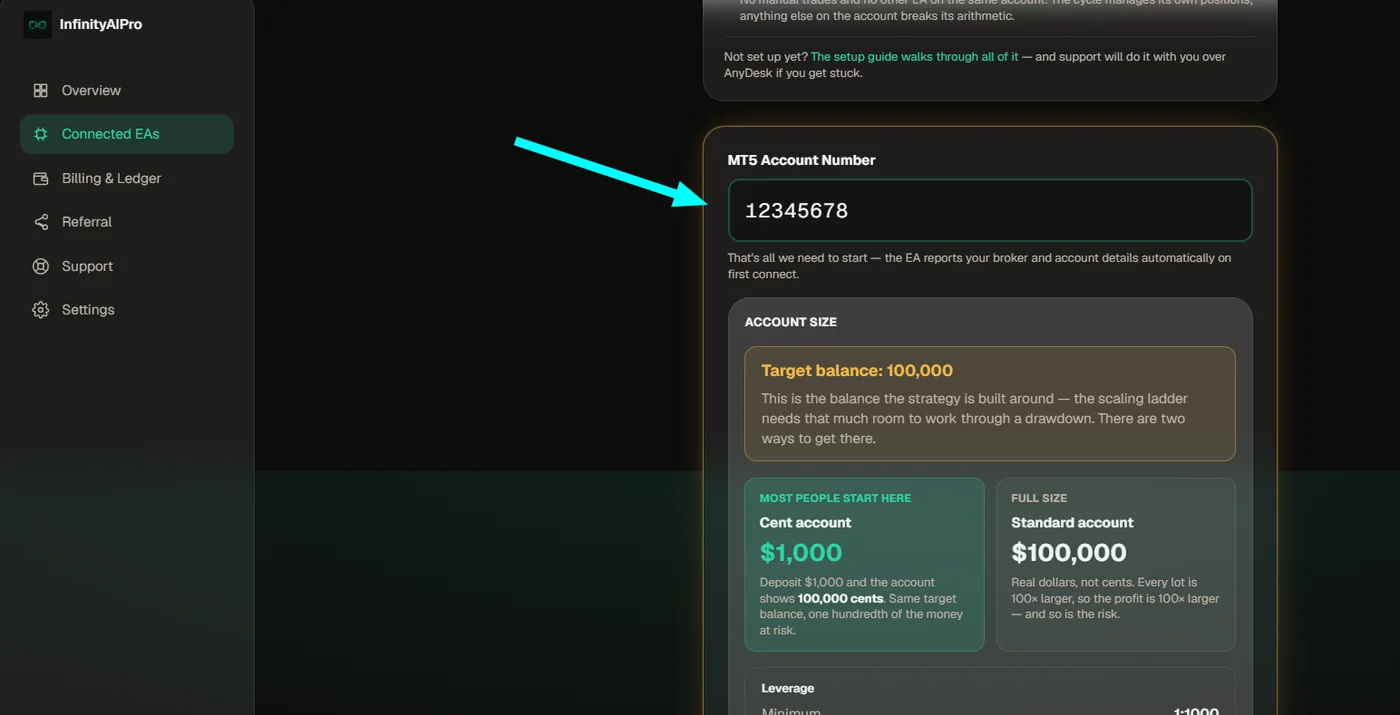
Enter the MT5 account number
Just the number — the EA reports your broker, your server and your account currency by itself on first connect. There is no key to copy and nothing to paste back into MetaTrader.
No account yet, or not sure yours qualifies? The requirements are on the setup guide — 2-digit gold, hedging, 1:1000 or better. Any broker meeting them works.
Partner links — they pay us a commission, nothing extra for you.
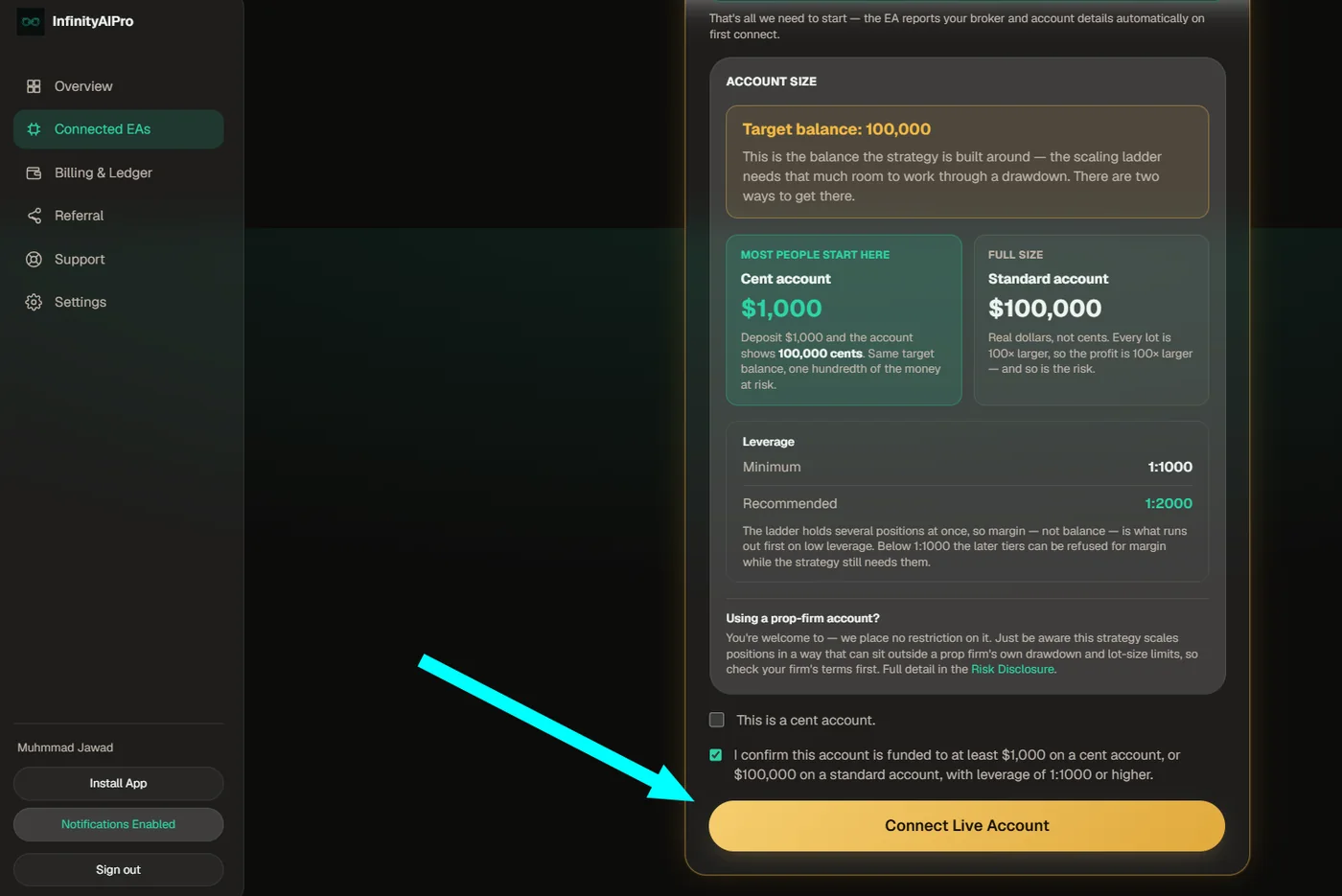
Confirm the funding, then connect
Tick the cent-account box if that is what you are running, confirm the account is funded to at least $1,000 on a cent account or $100,000 on a standard one with leverage of 1:1000 or better, and press Connect. On a demo, none of this applies and the button is teal rather than gold.
No account yet, or not sure yours qualifies? The requirements are on the setup guide — 2-digit gold, hedging, 1:1000 or better. Any broker meeting them works.
Partner links — they pay us a commission, nothing extra for you.
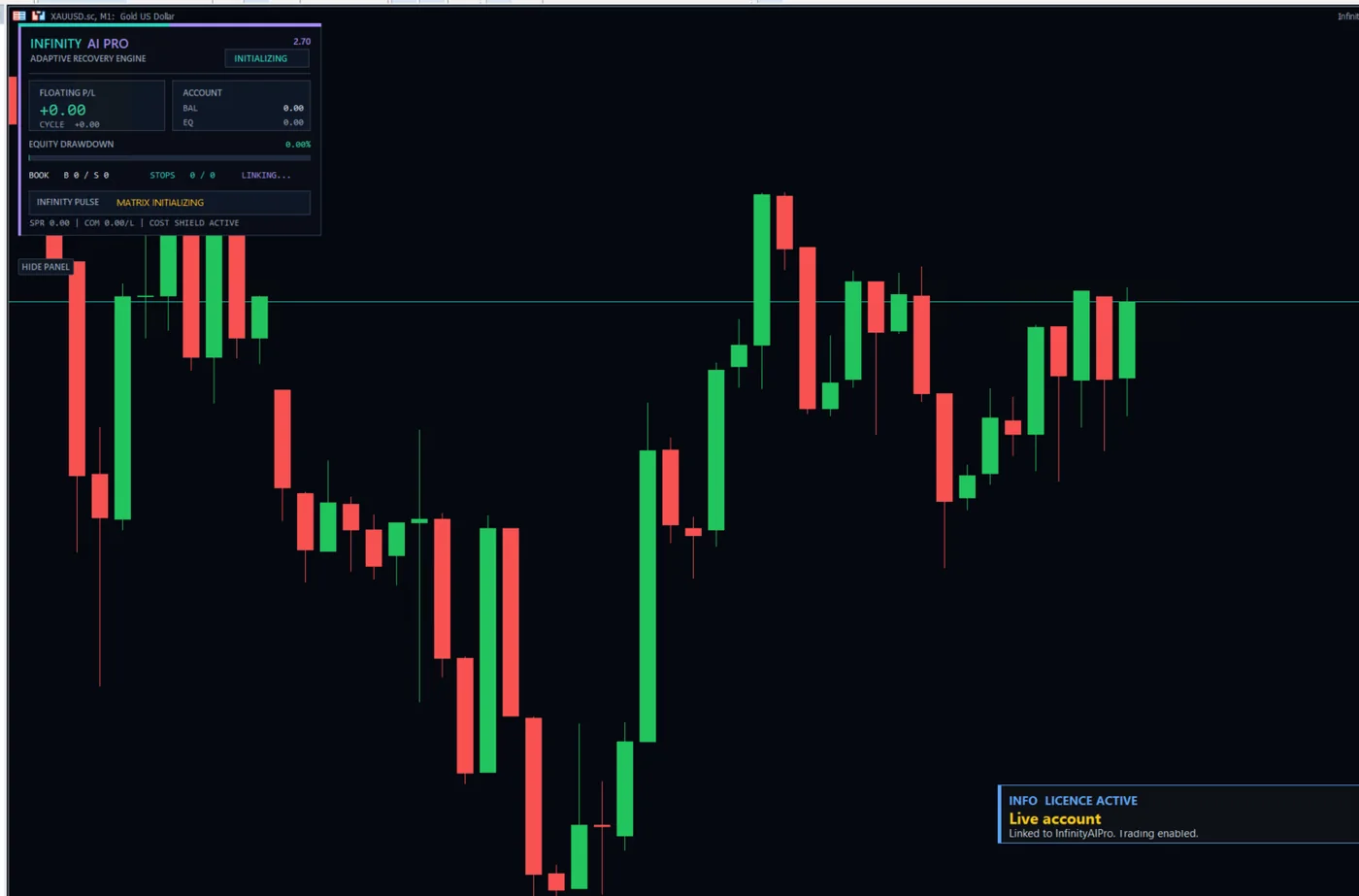
You will know it worked
- The panel appears on the chart with INFINITY AI PRO across the top and a version number.
- A blue notice reads LICENCE ACTIVE, names your account, and says "Linked to InfinityAIPro. Trading enabled."
- Within a few minutes the account on your dashboard changes from Not reporting to Reporting · Trading.
Keeping it running
Setup is the short part. These are the things that decide whether it is still running in three months.
Close the Remote Desktop window — never Sign Out
Closing the window disconnects your screen and leaves Windows, MetaTrader and the EA running. Signing out ends the session and takes everything with it, including an open cycle.
Restart the VPS once a week, at the weekend
FXVM ask for this and they are right: a Windows machine that never reboots accumulates memory and pending updates. Do it when the market is closed, and make sure MetaTrader comes back up afterwards.
Set MetaTrader to start with Windows
So a reboot — planned or not — brings the terminal back without you. FXVM include instructions for this on the VPS desktop. Without it, one restart at 3am is an EA that is switched off until somebody notices.
Run nothing else on this machine
No second EA, no other terminal, no manual trades on the same account, no browser left open on twenty tabs. The plan is sized for one terminal doing one job, and everything else competes with it for the processor at exactly the moments that matter.
Leave auto-renew on, and keep a working card on it
An expired VPS is switched off mid-cycle with positions still in the market and nothing managing them. It is the same failure as a power cut, except the machine stays off until somebody logs in and pays.
If something is not working
The panel says it is waiting, and never becomes active
The WebRequest URL is missing or mistyped. Go back to Tools → Options → Experts and check https://api.infinityaipro.com is in the list exactly, with no trailing slash and no www. This is the cause about nine times in ten.
The EA loads and draws its panel but never trades
The Algo Trading button in the toolbar is off. It is separate from the checkbox in Options, and it resets in some situations — check it is green.
The EA refuses to start and mentions the symbol
Your broker quotes gold with three decimals. The strategy's distances are set for a 2-digit feed, so it stops rather than trading numbers that no longer mean what they were tuned to. You need a 2-digit gold account.
InfinityAiProEA is not in the Navigator list
The file is not in MQL5/Experts, or the list has not been refreshed. Use File → Open Data Folder again rather than navigating by hand, and right-click Expert Advisors → Refresh.
The dashboard still says Not reporting after ten minutes
The EA pairs on its first successful licence check. If the panel says LICENCE ACTIVE but the dashboard does not update, the account number on the dashboard does not match the one MetaTrader is logged into — check it digit by digit.
Questions people ask
Why can't I run the gold EA on my own PC?
Two reasons, and the second is the one people underestimate. A home PC sleeps, updates and reboots, and the EA manages an open cycle continuously — stopping halfway does not pause it, it abandons it. And a home connection is typically 150 to 200 milliseconds from the broker against about 2 milliseconds from a VPS in the right datacentre.
How much latency does the EA need?
Under 5 milliseconds to your broker's server is the target, and a VPS in the same city as your broker gets there comfortably. The measurement is in MetaTrader's own status bar, bottom right.
Which VPS location should I choose?
The one nearest your broker's trade server, not the one nearest you. If you do not know where your broker is, ask FXVM's chat support before ordering — they will tell you which datacentre to pick.
Can I run other EAs on the same VPS?
You can, but not on the Lite plan and not on the same account. This strategy manages its own positions as a single cycle, and anything else trading that account breaks its arithmetic.
Do I need to compile anything?
No. The download is a compiled .ex5 file. Copy it into MQL5/Experts and refresh the Navigator — there is nothing to build and nothing to edit.
Does the EA need my broker password?
No. It runs on your own VPS against your own terminal, and there is nowhere on our site to enter a broker password. Nobody from InfinityAIPro will ever ask you for one.
Still stuck?
Open a support ticket and we will walk through it with you over AnyDesk — you stay at your own keyboard and type your own passwords. We never ask for your broker password, and there is nowhere on this site to enter one.
Contact support